Using EWS to calculate the age of Items and affect of archive and retention policies in Exchange 2010
While there are plenty of cmdlets within the Exchange Management Shell to calculate the Mailbox and Folder sizes and even Item sizes within public folders there is no cmdlets you can currently use to look at the age of the content within a mailbox to see how old it is and what affect an retention policy may have for example you may want to know how much data will be shifted to an archive store(Search-Mailbox kind of does it but...). To look at Mailbox Content the EWS Managed API provides a easy entry point and the flexibility to do this . On Exchange 2010 to scan for content between a particular date range using a Content Index query via Exchange Search is the quickest and most efficient way of querying this data. The EWS Managed API allows you to perform a CI search via Exchange Search using the AQS querystring overload parameter of the FindItems method see http://msdn.microsoft.com/en-us/library/ee693615%28v=exchg.140%29.aspx.
With AQS the operator .. can be used to search between a range of values for example you could use it to search for Messages between 5 and 10 MB using a AQS String like System.Size:1mb..5mb. When searching for age based content you want to search for items between a particular date range for example to search for items 3 years old you could use 01/01/1990..01/01/2008.
What I've done is create a EWS Managed API script that put this all together it firstly does a query to get the folder hierarchy adding a few other useful properties like the folderpath and the current folder size then using measure-object this sums a collection of folder items based on the Item size. The script produces a CSV file of all the folders in a mailbox that contain items with the Daterange and what the size of those items is and what percentage of the total size of the mailbox folder is the output should look like

With this script the following two variables control the data range for the AQS query and the mailboxes to access
$Range = "01/01/1990..01/01/2008"
$MailboxName = "user@domain.com"
I've put a download of this script here the code looks like
With AQS the operator .. can be used to search between a range of values for example you could use it to search for Messages between 5 and 10 MB using a AQS String like System.Size:1mb..5mb. When searching for age based content you want to search for items between a particular date range for example to search for items 3 years old you could use 01/01/1990..01/01/2008.
What I've done is create a EWS Managed API script that put this all together it firstly does a query to get the folder hierarchy adding a few other useful properties like the folderpath and the current folder size then using measure-object this sums a collection of folder items based on the Item size. The script produces a CSV file of all the folders in a mailbox that contain items with the Daterange and what the size of those items is and what percentage of the total size of the mailbox folder is the output should look like
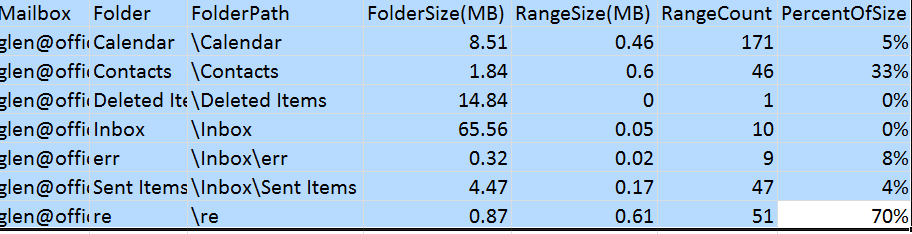
With this script the following two variables control the data range for the AQS query and the mailboxes to access
$Range = "01/01/1990..01/01/2008"
$MailboxName = "user@domain.com"
I've put a download of this script here the code looks like
- $Range = "01/01/1990..01/01/2008"
- $MailboxName = "user@domain.com"
- $AQSString = "System.Message.DateReceived:" + $Range
- $rptCollection = @()
- function ConvertToString($ipInputString){
- $Val1Text = ""
- for ($clInt=0;$clInt -lt $ipInputString.length;$clInt++){
- $Val1Text = $Val1Text + [Convert]::ToString([Convert]::ToChar([Convert]::ToInt32($ipInputString.Substring($clInt,2),16)))
- $clInt++
- }
- return $Val1Text
- }
- $dllpath = "C:\Program Files\Microsoft\Exchange\Web Services\1.1\Microsoft.Exchange.WebServices.dll"
- [void][Reflection.Assembly]::LoadFile($dllpath)
- $service = New-Object Microsoft.Exchange.WebServices.Data.ExchangeService([Microsoft.Exchange.WebServices.Data.ExchangeVersion]::Exchange2010)
- #$service.Credentials = New-Object System.Net.NetworkCredential("username","password")
- $windowsIdentity = [System.Security.Principal.WindowsIdentity]::GetCurrent()
- $sidbind = "LDAP://<SID=" + $windowsIdentity.user.Value.ToString() + ">"
- $aceuser = [ADSI]$sidbind
- $service.AutodiscoverUrl($MailboxName,{$true})
- $PR_FOLDER_TYPE = new-object Microsoft.Exchange.WebServices.Data.ExtendedPropertyDefinition(13825,[Microsoft.Exchange.WebServices.Data.MapiPropertyType]::Integer);
- "Checking : " + $MailboxName
- $folderidcnt = new-object Microsoft.Exchange.WebServices.Data.FolderId([Microsoft.Exchange.WebServices.Data.WellKnownFolderName]::MsgFolderRoot,$MailboxName)
- $fvFolderView = New-Object Microsoft.Exchange.WebServices.Data.FolderView(1000)
- $fvFolderView.Traversal = [Microsoft.Exchange.WebServices.Data.FolderTraversal]::Deep;
- $psPropertySet = new-object Microsoft.Exchange.WebServices.Data.PropertySet([Microsoft.Exchange.WebServices.Data.BasePropertySet]::FirstClassProperties)
- $PR_MESSAGE_SIZE_EXTENDED = new-object Microsoft.Exchange.WebServices.Data.ExtendedPropertyDefinition(3592,[Microsoft.Exchange.WebServices.Data.MapiPropertyType]::Long);
- $PR_DELETED_MESSAGE_SIZE_EXTENDED = new-object Microsoft.Exchange.WebServices.Data.ExtendedPropertyDefinition(26267,[Microsoft.Exchange.WebServices.Data.MapiPropertyType]::Long);
- $PR_Folder_Path = new-object Microsoft.Exchange.WebServices.Data.ExtendedPropertyDefinition(26293, [Microsoft.Exchange.WebServices.Data.MapiPropertyType]::String);
- $psPropertySet.Add($PR_MESSAGE_SIZE_EXTENDED);
- $psPropertySet.Add($PR_Folder_Path);
- $fvFolderView.PropertySet = $psPropertySet;
- $sfSearchFilter = new-object Microsoft.Exchange.WebServices.Data.SearchFilter+IsEqualTo($PR_FOLDER_TYPE,"1")
- $fiResult = $Service.FindFolders($folderidcnt,$sfSearchFilter,$fvFolderView)
- foreach($ffFolder in $fiResult.Folders){
- "Processing : " + $ffFolder.displayName
- $TotalItemCount = $TotalItemCount + $ffFolder.TotalCount;
- $FolderSize = $null;
- $FolderSizeValue = 0
- if ($ffFolder.TryGetProperty($PR_MESSAGE_SIZE_EXTENDED,[ref] $FolderSize))
- {
- $FolderSizeValue = [Int64]$FolderSize
- }
- $foldpathval = $null
- if ($ffFolder.TryGetProperty($PR_Folder_Path,[ref] $foldpathval))
- {
- }
- $binarry = [Text.Encoding]::UTF8.GetBytes($foldpathval)
- $hexArr = $binarry | ForEach-Object { $_.ToString("X2") }
- $hexString = $hexArr -join ''
- $hexString = $hexString.Replace("FEFF", "5C00")
- $fpath = ConvertToString($hexString)
- $fiFindItems = $null
- $ItemView = New-Object Microsoft.Exchange.WebServices.Data.ItemView(1000)
- $psPropertySet1 = new-object Microsoft.Exchange.WebServices.Data.PropertySet([Microsoft.Exchange.WebServices.Data.BasePropertySet]::IdOnly)
- $psPropertySet1.Add([Microsoft.Exchange.WebServices.Data.ItemSchema]::Size)
- $ItemView.PropertySet
- $itemCollection = @()
- do{
- $fiFindItems = $ffFolder.findItems($AQSString,$ItemView)
- $ItemView.offset += $fiFindItems.Items.Count
- foreach($Item in $fiFindItems.Items){
- $rptobject = "" | select Size
- $rptobject.Size = $Item.Size
- $itemCollection +=$rptobject
- }
- }while($fiFindItems.MoreAvailable -eq $true)
- $outObj = $itemCollection | Measure-Object Size -Sum -Average -Min -Max
- if($outObj -ne $null){
- Add-Member -InputObject $outObj -MemberType NoteProperty -Name Mailbox -Value $MailboxName
- Add-Member -InputObject $outObj NoteProperty -Name Folder -Value $ffFolder.DisplayName
- Add-Member -InputObject $outObj NoteProperty -Name FolderPath -Value $fpath
- Add-Member -InputObject $outObj NoteProperty -Name TotalFolderSize -Value $FolderSizeValue
- Add-Member -InputObject $outObj NoteProperty -Name DateRange -Value $Range
- $rptCollection += $outObj
- }
- }
- $rptCollection | select Mailbox,Folder,FolderPath,@{label="FolderSize(MB)";expression={[math]::Round($_.TotalFolderSize/1MB,2)}},@{label="RangeSize(MB)";expression={[math]::Round($_.Sum/1MB,2)}},@{label="RangeCount";expression={$_.Count}},@{label="PercentOfSize";expression={'{0:P0}' -f ($_.Sum/$_.TotalFolderSize)}} | export-csv c:\temp\MbAgeReport.csv -NoTypeInformation